Some people have still been having issues with the UI lag. While the settings from http://tera-online-guides.blogspot.com/2012/10/tweaking-tera-onlines-game-performance.html has helped improve game performance and fixed errors others still notice a problem with some video cards. A friend of mine from K-Tera has been kind enough to share some other settings that might help to address this problem for others so I'll post what she shared.
These settings are found under your Nvidia Control Pannel:
Antialiasing - FXAA On
Antialiasing - Gamma correction On
Antialiasing - Mode Enhance the application setting
Antialiasing - Setting 16xQ CSAA
Antialiasing - Transparency 8x (supersample)
CUDA - GPUs All
Maximum pre-rendered frames 3
Multi-display/mixed-GPU acceleration single display performance mode
SLI rendering mode NVIDIA recommended
Texture Filtering - Anisotropic sampling option on
Texture Filtering - Negitive LOD bias Allow
She also recomends using the core unparking which was explained in the first guide I published as well. But keep in mind if your on a laptop core unparking will not be an option for you because it causes the system to use more power and laptops are made to be power efficiant since they run on a battery. Core unparking does not work for systems which are only single cores as well it only effects multi-core processors because all your doing is taking off the windows limits that makes the system use all 4 cores instead of locking them and making them inactive during when they are not being used.
Another thing she also recomended was downloading and installing beta legacy drivers from: http://www.geforce.com/drivers/beta-legacy
Reasoning for this is because she says many of the beta drivers for the newer cards boost performance over the main current drivers and will improve your game performance even more. She said if tweaking your system this way doesn't improve fps performance you could look to your ram and make sure that your not over your usage as well as check for any virus's on your system that could be causing fps drops but other then what was posted on the above guide there's not much you can really do to improve fps.
Showing posts with label lag. Show all posts
Showing posts with label lag. Show all posts
Wednesday, October 31, 2012

Tuesday, October 2, 2012
Tweaking Tera Online's Game Performance
Updated: 7/17/2014
Added flash memory changing for optimization~!
I wanted to add something else about the lag because it really will make players understand the lag during things like PvP and why none of the things below will make it possible to fix lag under every circumstance so if your interested click here.
Whether you have the best gaming computer on the market or have an older computer that still meets recommendations for Tera Online chances are you are not getting the best performance out of your game. There are a good number of settings that you can do outside of game and within the game client which can improve your game function increase your fps and make Tera Online play more smoothly.
The first settings that I will cover are the ones that are specific to Nvidia cards I'm not sure if the same settings can be found in Radeon cards so I can't say if it's the same for those cards. But if you pull your video settings up for your graphics by going to Nvidia Control panel. Then go to manage 3d settings you have two options you can either make a profile just for Tera Online or you can edit the global settings for all games its up to you what you decide to do. Set the options in the profile like so:
C:\Program Files (x86)\TERA\Client\S1Game\Config <- 64bit operating systems
C:\Program Files\TERA\Client\S1Game\Config <- 32bit operating systems
C:\ProgramData\HappyCloud\Cache\TERA\Client\S1Game\Config <- New location for the happy cloud version of Tera Online
If you installed to another location you should know where to find the Tera Online folder. In that folder delete the following files:
S1Editor
S1EditorUserSettings
S1Engine
S1Game
S1Input
S1Option
S1UI
Load the game up and it will remake these files for you which is clearing out all the normal settings making default versions for you.
Then back up the S1Engine file. And open it in notepad so you can modify the settings in the file. Search and Replace:
Search: UseMinimalNVIDIADriverShaderOptimization=True
*Replace: UseMinimalNVIDIADriverShaderOptimization=False
Search: bDisablePhysXHardwareSupport=True
*Replace: bDisablePhysXHardwareSupport=False
Search: MinSmoothedFrameRate=
Replace: MinSmoothedFrameRate=32
Search: MaxSmoothedFrameRate=
Replace: MaxSmoothedFrameRate=120
Search: CompatLevelGPU=4
Add: CPUNumLogicalProcessors=4 <- This is the number of cores your CPU has mine is 4 which is quadcore.
*Note: This setting only applies to Nvidia cards.
Note: Make sure that you make the S1Engine.ini file read only or the settings will revert back to the default.
If you are lost making these modifications I have edited files uploaded here:
https://docs.google.com/file/d/0B90u9z2fsJ4baFNGVmE5THdvSDA/edit?usp=sharing
Another modification which can be done which also has an effect the UI game system uses Autodesk® Scaleform which runs on flash so updating your shockwave player as well as flash player can also play a part in improving your fps in game while most of us do this normally so it might not apply to everyone there are some people who might not update it often.
Increasing flash memory for adobe
http://www.adobe.com/support/documentation/en/flashplayer/help/settings_manager07.html
Use the address above and make sure that the settings look like below
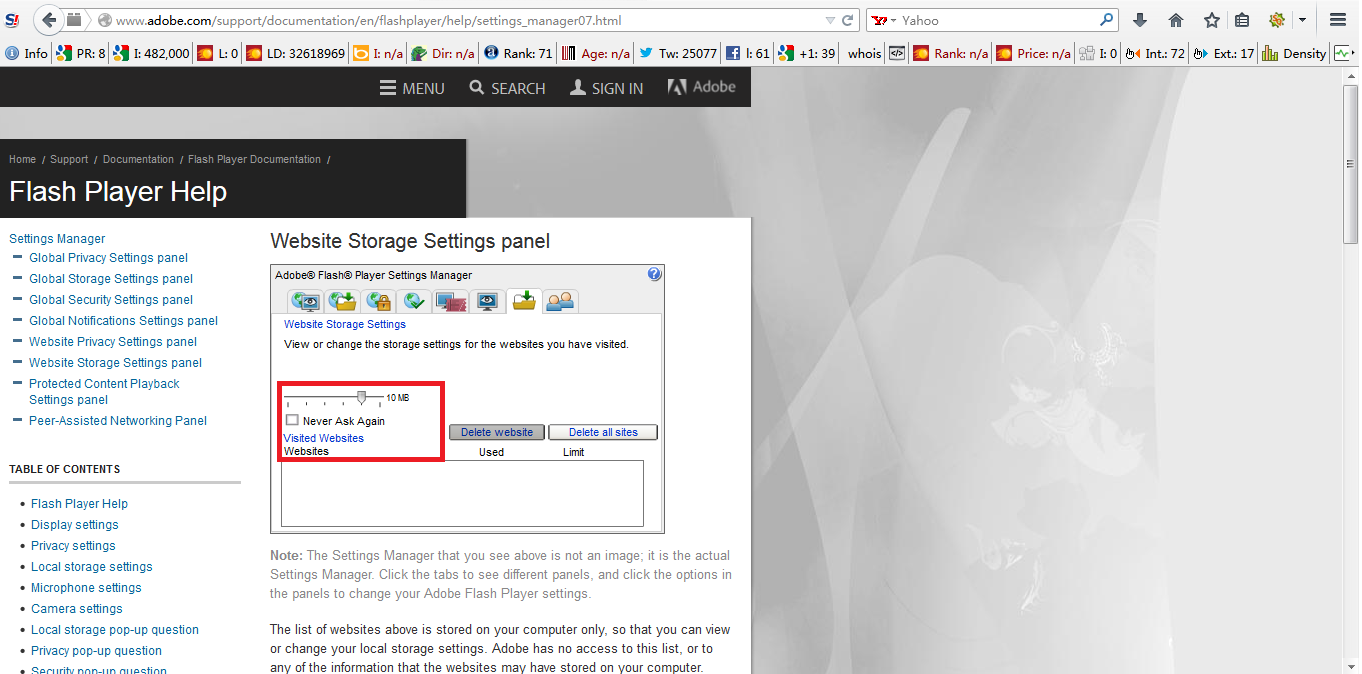 The reason you will want to set these settings to 10MB's instead of unlimited is when they are set to unlimited it can cause memory leaks and make the game lag very bad or cause it to crash completely so we want to just limit how much memory it can use so it doesn't do bad things.
*Note: Core Unparking is not recommended for laptops this will increase battery usage and raise CPU temperatures!
Another feature which can be modified for even more performance is the CPU core parking. In windows vista+ windows in an attempt to conserve power windows parks CPU's making it so only one core takes all of the processes. This causes GPU to bottleneck in games and decreases performance. Editing this can be done easily using a program to modify the registry which you can find below. You can switch it back if you want to but I noticed a direct increase in all of my programs not just in game. And one of my friends noticed major increases in windows 8 as well.
http://www.coderbag.com/Programming-C/Disable-CPU-Core-Parking-Utility
You will need to restart after you unpark all the cores of your computer.
So hopefully if you've managed to do all of the above at this point Tera Online should look and play that more amazing without having to use any of the other changes that you see in Tera Online Guides: Fighting Nexus Lag I can't say how these settings above will effect Nexus until tomorrow but I found much better improvement overall which makes me very happy.
More information on Tweaking Tera:
Full Break down of S1Engine.ini
Speeding up client login network throttling to reduce lag and FOV
Reducing Hitbox Lag in Battlegrounds
What causes Tera's Lag
More information on video tweaking for Tera
Reducing lag in Nexus
Added flash memory changing for optimization~!
I wanted to add something else about the lag because it really will make players understand the lag during things like PvP and why none of the things below will make it possible to fix lag under every circumstance so if your interested click here.
Whether you have the best gaming computer on the market or have an older computer that still meets recommendations for Tera Online chances are you are not getting the best performance out of your game. There are a good number of settings that you can do outside of game and within the game client which can improve your game function increase your fps and make Tera Online play more smoothly.
The first settings that I will cover are the ones that are specific to Nvidia cards I'm not sure if the same settings can be found in Radeon cards so I can't say if it's the same for those cards. But if you pull your video settings up for your graphics by going to Nvidia Control panel. Then go to manage 3d settings you have two options you can either make a profile just for Tera Online or you can edit the global settings for all games its up to you what you decide to do. Set the options in the profile like so:
- Vertical Sync - Force On
- Triple Buffering - On
- Threaded Optimization - On
- Trilinear Optimalization - Off
- Texture Filtering - Anisotropic sample opt... - Off
- Power Managment mode - Prefer Maximum Performance
- Maximum Pre-Rendered Frames - 3 (Need at least direct x9.0 for this to work)
- Antialiasing Transparency - Multisample
- Antialiasing Setting - 2x
- Antialiasing Mode - Override any application settings (This uses the preset you have in Nvidia)
- Anisotropic Filtering - 16x
- Texture Filtering - Negative LOD bias - Allow
C:\Program Files (x86)\TERA\Client\S1Game\Config <- 64bit operating systems
C:\Program Files\TERA\Client\S1Game\Config <- 32bit operating systems
C:\ProgramData\HappyCloud\Cache\TERA\Client\S1Game\Config <- New location for the happy cloud version of Tera Online
If you installed to another location you should know where to find the Tera Online folder. In that folder delete the following files:
S1Editor
S1EditorUserSettings
S1Engine
S1Game
S1Input
S1Option
S1UI
Load the game up and it will remake these files for you which is clearing out all the normal settings making default versions for you.
Then back up the S1Engine file. And open it in notepad so you can modify the settings in the file. Search and Replace:
Search: UseMinimalNVIDIADriverShaderOptimization=True
*Replace: UseMinimalNVIDIADriverShaderOptimization=False
Search: bDisablePhysXHardwareSupport=True
*Replace: bDisablePhysXHardwareSupport=False
Search: MinSmoothedFrameRate=
Replace: MinSmoothedFrameRate=32
Search: MaxSmoothedFrameRate=
Replace: MaxSmoothedFrameRate=120
Search: CompatLevelGPU=4
Add: CPUNumLogicalProcessors=4 <- This is the number of cores your CPU has mine is 4 which is quadcore.
*Note: This setting only applies to Nvidia cards.
Note: Make sure that you make the S1Engine.ini file read only or the settings will revert back to the default.
If you are lost making these modifications I have edited files uploaded here:
https://docs.google.com/file/d/0B90u9z2fsJ4baFNGVmE5THdvSDA/edit?usp=sharing
Another modification which can be done which also has an effect the UI game system uses Autodesk® Scaleform which runs on flash so updating your shockwave player as well as flash player can also play a part in improving your fps in game while most of us do this normally so it might not apply to everyone there are some people who might not update it often.
Increasing flash memory for adobe
http://www.adobe.com/support/documentation/en/flashplayer/help/settings_manager07.html
Use the address above and make sure that the settings look like below

*Note: Core Unparking is not recommended for laptops this will increase battery usage and raise CPU temperatures!
Another feature which can be modified for even more performance is the CPU core parking. In windows vista+ windows in an attempt to conserve power windows parks CPU's making it so only one core takes all of the processes. This causes GPU to bottleneck in games and decreases performance. Editing this can be done easily using a program to modify the registry which you can find below. You can switch it back if you want to but I noticed a direct increase in all of my programs not just in game. And one of my friends noticed major increases in windows 8 as well.
http://www.coderbag.com/Programming-C/Disable-CPU-Core-Parking-Utility
You will need to restart after you unpark all the cores of your computer.
So hopefully if you've managed to do all of the above at this point Tera Online should look and play that more amazing without having to use any of the other changes that you see in Tera Online Guides: Fighting Nexus Lag I can't say how these settings above will effect Nexus until tomorrow but I found much better improvement overall which makes me very happy.
More information on Tweaking Tera:
Full Break down of S1Engine.ini
Speeding up client login network throttling to reduce lag and FOV
Reducing Hitbox Lag in Battlegrounds
What causes Tera's Lag
More information on video tweaking for Tera
Reducing lag in Nexus
Thursday, September 13, 2012
Fighting Nexus's Lag In Tera Online
Mmorpg's have tried for years to provide world raids in game and because of servers limitations as well as graphic cards not being able to handle it most have realized that it is not possible to have 900+ players on a single spot. But Tera Online has this issue with the world raid called Nexus. Players spend a Nexus raid lagging trying to clear portals so they can get their Agnitor reputation and gold.
To many players seeing how laggy Nexus is ends up being a major turn off. But there are some things you can do to increase your FPS and be able to at least stay connected for it which allows you to at least get into the raid Nexus Traverse which is the very first raid. And today I'll explain how to go about doing this so your Nexus this weekend will be a little better.
One of the first things you can do if your in the massive group of players you can either turn away and face outside of the group this will reduce your lag because you won't be looking into the mass of players an effects. I usually bring badges and sit on the edge of the nexus portal because I lag too much to move and its hard to fill the raid group while staying alive otherwise. If your trying to be in the center of the raid you can zoom into your character which will reduce lag some as well and improve FPS. But one of the issue's with being in the center of the pile is if the boss decides to sit on your face you can get one shot and then it makes it hard for your team to bring you back up till after the portal is dead. Another way is by turning off combat logs which you can see how to do that below by hitting ALT and clicking the combat chat tag then clicking the gear in the left corner and editing the chat options for that window and un-checking all the combat logs.

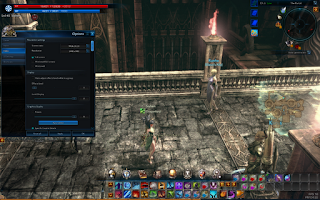
Something else that can be done to help increase your FPS is also turning off the titles and hp bars of players around you. To do this you would go to the game options I've provided a screenshot of the settings so you can see which I turned off. You can also turn off NPC's as well temporarily if you want but that's up to you.
 The last way you can improve frame rate is decreasing the effects as well as the distance. Effects cannot be turned completely off unfortunately and I have suggested that to the developers but not sure if they will in the future give a way to remove all effects. The distance improves how far you see ahead of you this can be useful in PvP like battleground's so that you have less lag if your video isn't that good but it can improve frame rate during Nexus as well.

That's about all you can do other then having a good amount of ram and a decent computer with video card. Hopefully we will see more improvements made after the server merge coming up and hopefully they will improve server quality and take more measures to make Nexus function better but for now these steps above will improve your experience. Otherwise have a great weekend in Tera Online and I hope you get awesome loot!
To many players seeing how laggy Nexus is ends up being a major turn off. But there are some things you can do to increase your FPS and be able to at least stay connected for it which allows you to at least get into the raid Nexus Traverse which is the very first raid. And today I'll explain how to go about doing this so your Nexus this weekend will be a little better.
One of the first things you can do if your in the massive group of players you can either turn away and face outside of the group this will reduce your lag because you won't be looking into the mass of players an effects. I usually bring badges and sit on the edge of the nexus portal because I lag too much to move and its hard to fill the raid group while staying alive otherwise. If your trying to be in the center of the raid you can zoom into your character which will reduce lag some as well and improve FPS. But one of the issue's with being in the center of the pile is if the boss decides to sit on your face you can get one shot and then it makes it hard for your team to bring you back up till after the portal is dead. Another way is by turning off combat logs which you can see how to do that below by hitting ALT and clicking the combat chat tag then clicking the gear in the left corner and editing the chat options for that window and un-checking all the combat logs.

Something else that can be done to help increase your FPS is also turning off the titles and hp bars of players around you. To do this you would go to the game options I've provided a screenshot of the settings so you can see which I turned off. You can also turn off NPC's as well temporarily if you want but that's up to you.


That's about all you can do other then having a good amount of ram and a decent computer with video card. Hopefully we will see more improvements made after the server merge coming up and hopefully they will improve server quality and take more measures to make Nexus function better but for now these steps above will improve your experience. Otherwise have a great weekend in Tera Online and I hope you get awesome loot!
Subscribe to:
Posts (Atom)